Cookies
Signed-in downloads, restricted content, and cookie setup
Cookies reuse your browser's signed-in session so VidBee can download content that requires login or verification, such as subscriber-only items, age-gated pages, or private links.
If you see a message like "Sign in to confirm you're not a bot" or "login required," you need cookies.
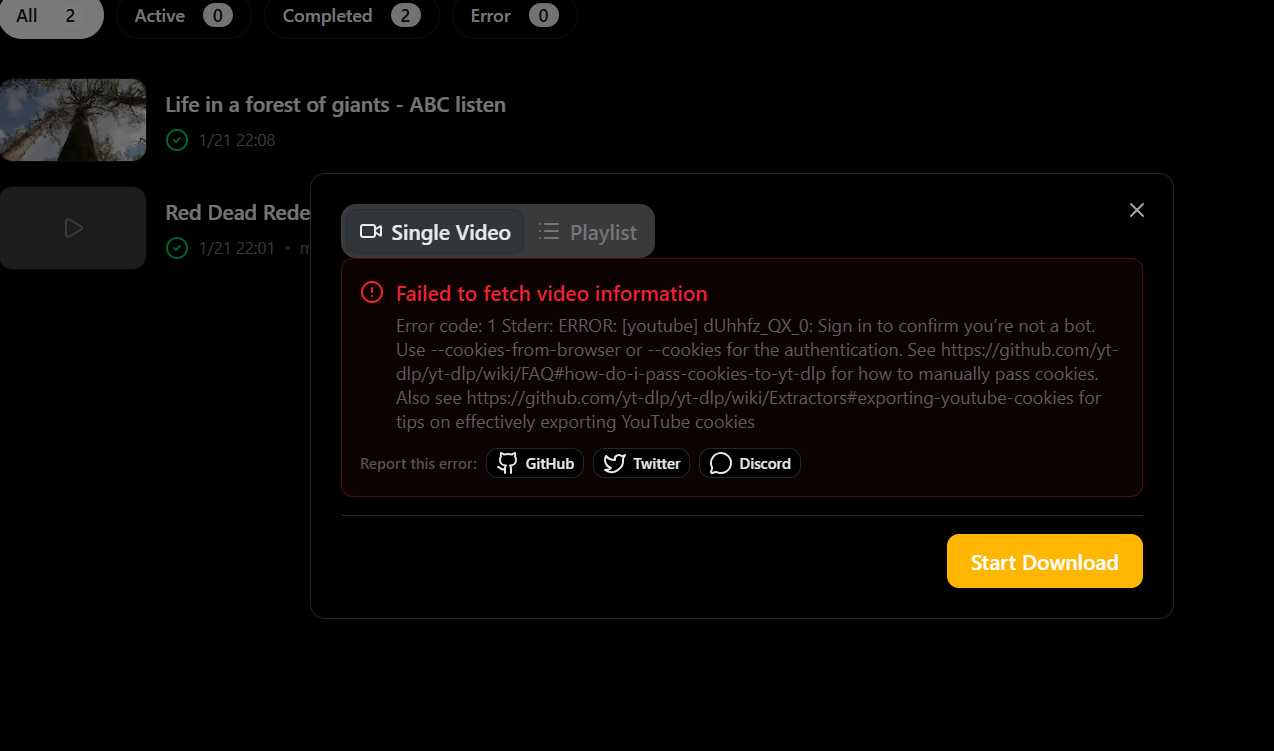
When you need cookies
- Content that requires an account to view or download.
- Age-gated or region-locked pages.
- Private links or lists visible only to signed-in users.
- “Sign in to confirm you’re not a bot” or similar verification prompts.
Two ways to use cookies in VidBee
Option 1: Read cookies from your browser
In Settings, select your browser. VidBee will try to detect the browser profile path automatically. You can also enter the profile path manually.
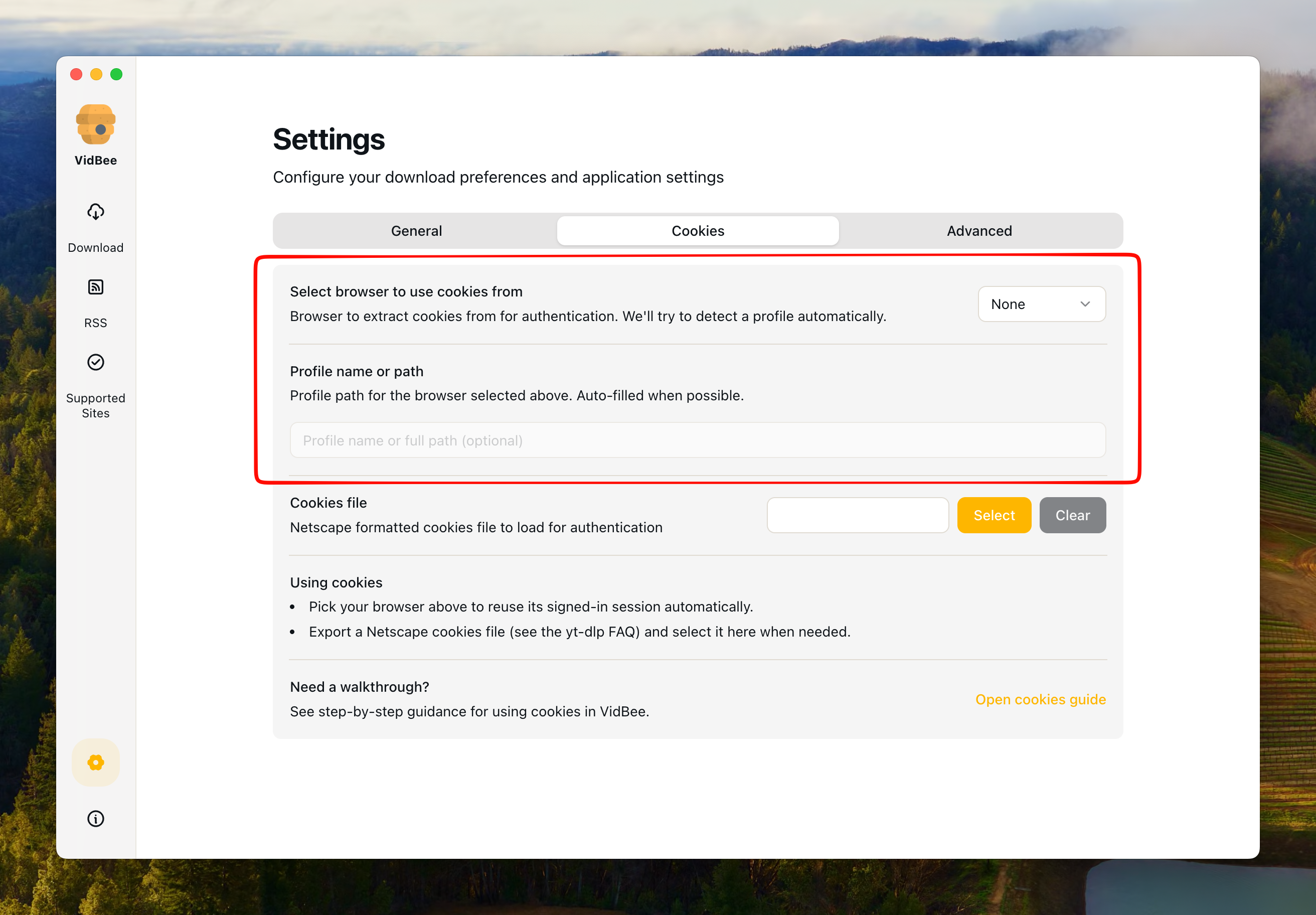
Supported browsers (platform dependent):
- Windows: Firefox only. Other browsers cannot be used for cookie reading.
- macOS: All browsers supported.
- Linux: All browsers supported.
Steps:
- Sign in to the site in your browser first.
- Open VidBee → Settings → Cookies.
- Select a browser and confirm the profile path.
- Go back and start the download again.
If detection fails or the path is invalid, manually choose the actual browser profile directory. On Windows, if you are not using Firefox, switch to the cookies file method.
Option 2: Import a cookies file
You can import a cookies file. This is useful when reading the browser profile is not possible, such as using non-Firefox browsers on Windows.
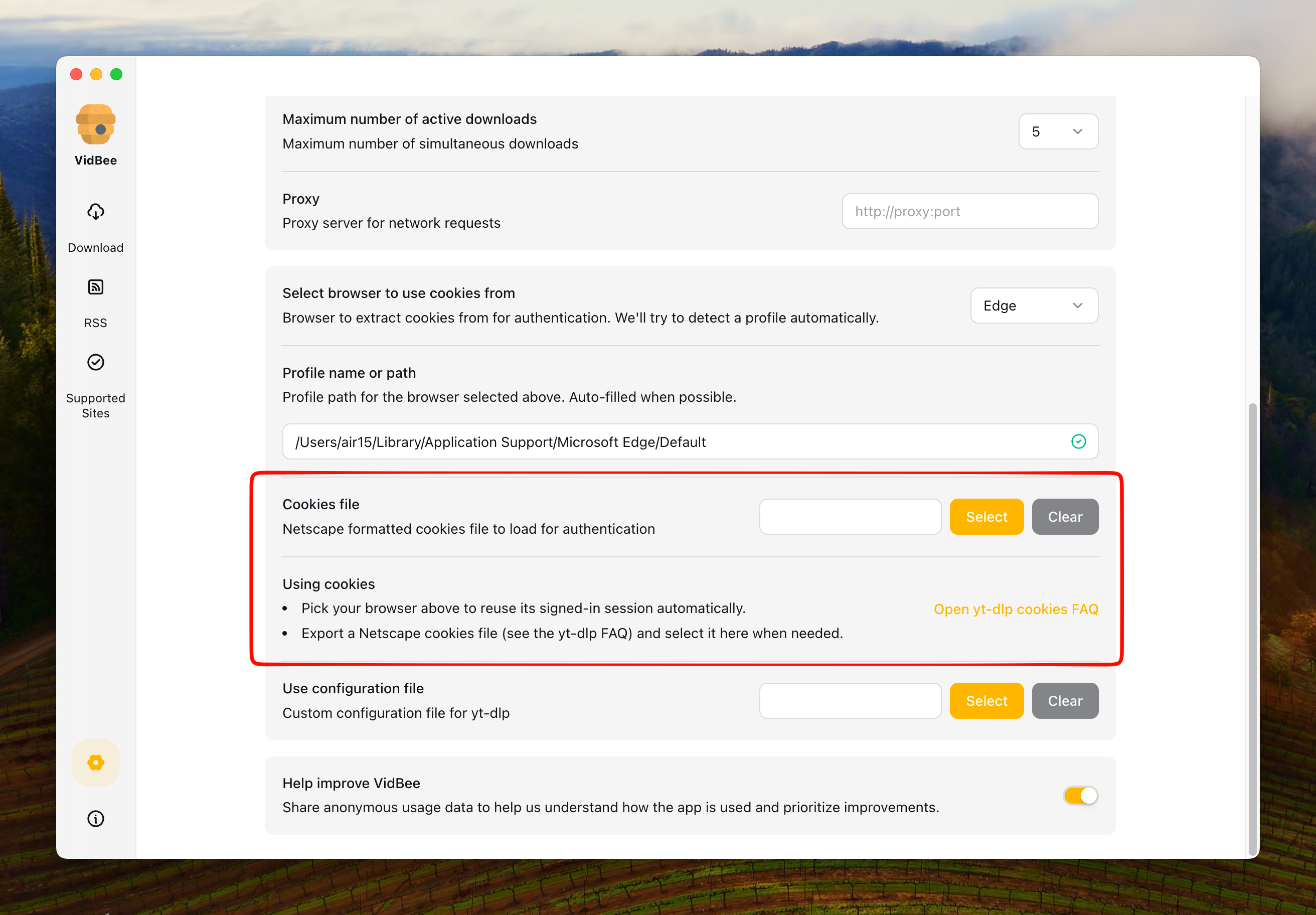
Steps:
-
Export cookies using a browser extension
Choose one of these recommended extensions:
- Chrome/Edge: Get cookies.txt LOCALLY
- Firefox: cookies.txt
Security note: Only install the extensions recommended above. If you previously installed "Get cookies.txt" (not "LOCALLY"), uninstall it immediately. That version has been reported as malware.
-
Export your cookies
Click the export button in the extension and choose where to save the file. The extension will automatically export the cookies in Netscape format.
-
Import to VidBee
- Open VidBee → Settings → Cookies file
- Click Select file and choose the exported cookies file
- Refresh the download page when done
-
Remove the cookies file
Click Clear to disable it anytime.
Recommendations
- Prefer browser-based cookies when possible, because it's easier to maintain.
- If browser reading fails, switch to a cookies file.
- Cookies files expire. Re-export when your account state changes.
Troubleshooting
Browser-based method:
- Profile path is invalid: Ensure the folder exists and points to the real browser profile directory.
- Browser read failed: Close the browser and retry, or switch to a cookies file method.
Cookies file method:
- Still asks for login: Verify your browser is signed into the account. If signed in, ensure the exported cookies file is complete and properly formatted.
- Export extension not working: Make sure you installed the recommended extension version. Some outdated or unauthorized versions may not work properly.
- Cookies file expired: If unused for a long time, your login session may have expired. Sign in again in your browser and export a new cookies file.
- HTTP Error 400: This usually indicates a file format issue. Ensure the file is in standard Netscape format with correct encoding.
Learn more
Privacy and security
Cookies are equivalent to your login session. Keep them private and never share or upload them. If you suspect leakage, sign out and change your password.